

Simplify your WordPress workflow!
Build faster, cleaner, and more reliable WordPress websites using lightweight plugins designed for real-world workflows.
Get started now
A profile is a named set of copy settings: which elements are copied, how copies are named, what happens after copying, which button it has and what its Assistant does. Profiles let you keep different ways of copying — “Landing pages”, “Translation draft”, “Full clone” — without changing settings every time.
Open RB Plugins → Duplicate Post → Copy.
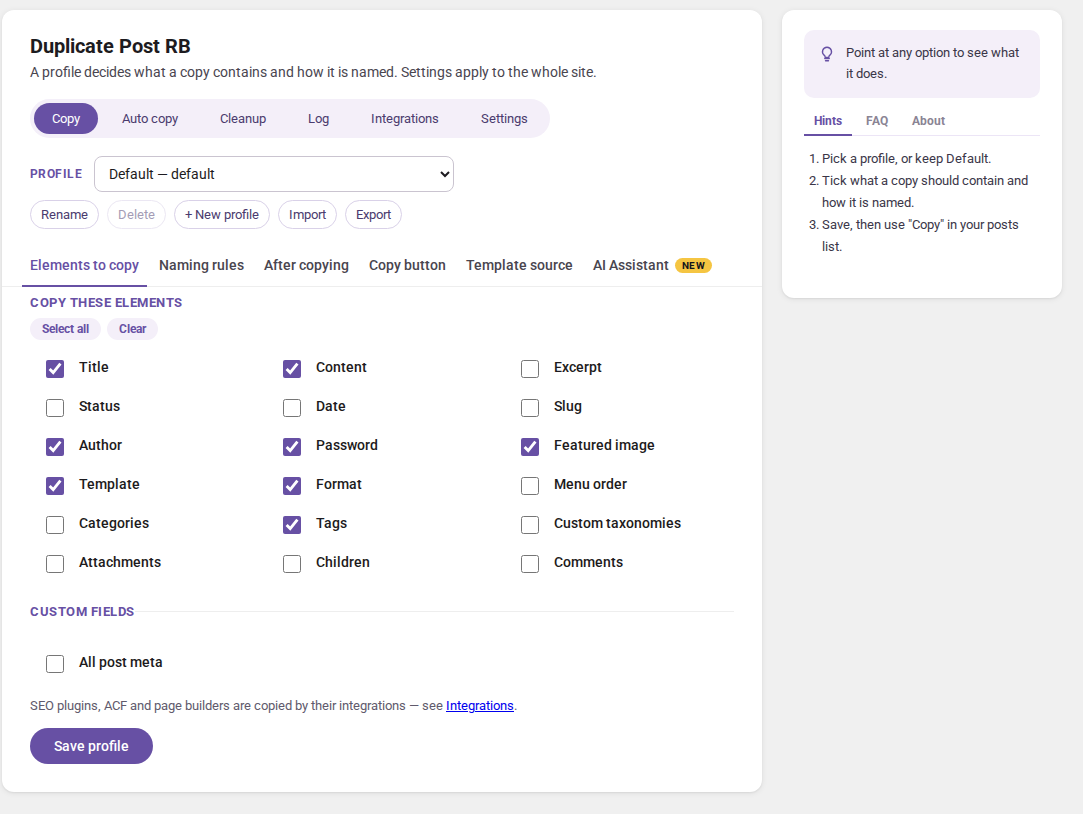
At the top of the view:
Changes are saved with Save profile; the screen warns you about unsaved changes before you leave or switch profiles.
| Tab | What it sets |
|---|---|
| Elements to copy | what a copy contains |
| Naming rules | prefix and suffix of the copy’s title |
| After copying | where you go after copying; Copy as (PRO) |
| Copy button | the profile’s own button |
| Template source | a post new items are created from |
| AI Assistant | steps and questions that adapt every copy |
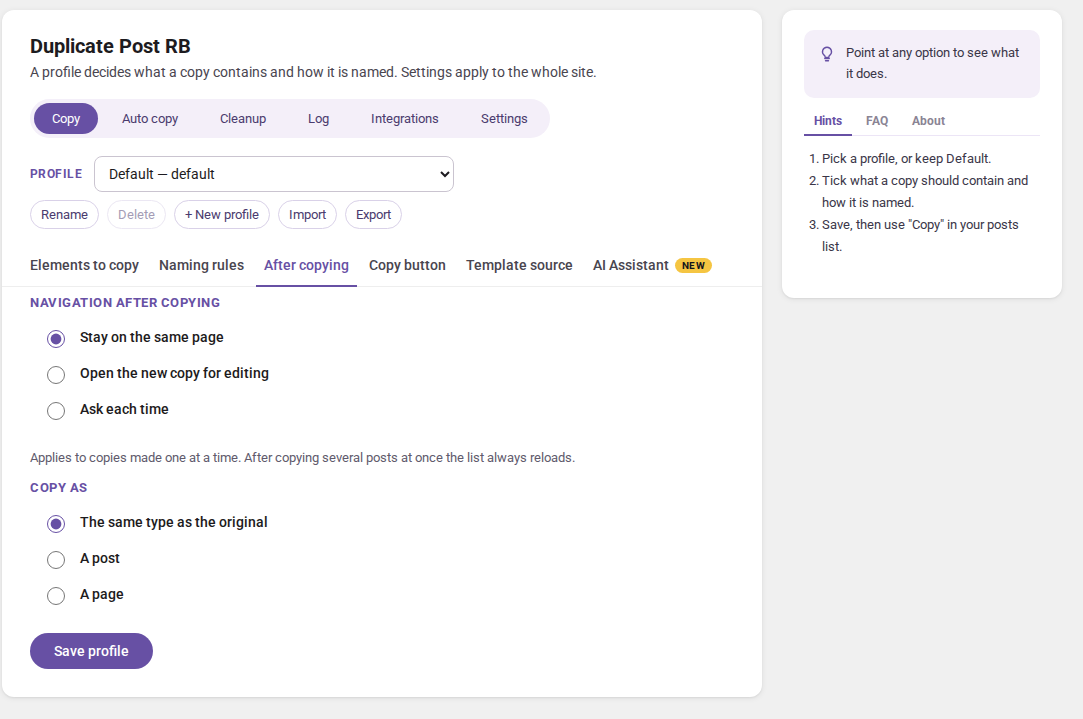
This applies to copies made one at a time; after copying several posts the list always reloads.
Copy as (PRO) — a page copied with this profile becomes a post, or a post becomes a page: turn a landing page into a blog article and back.
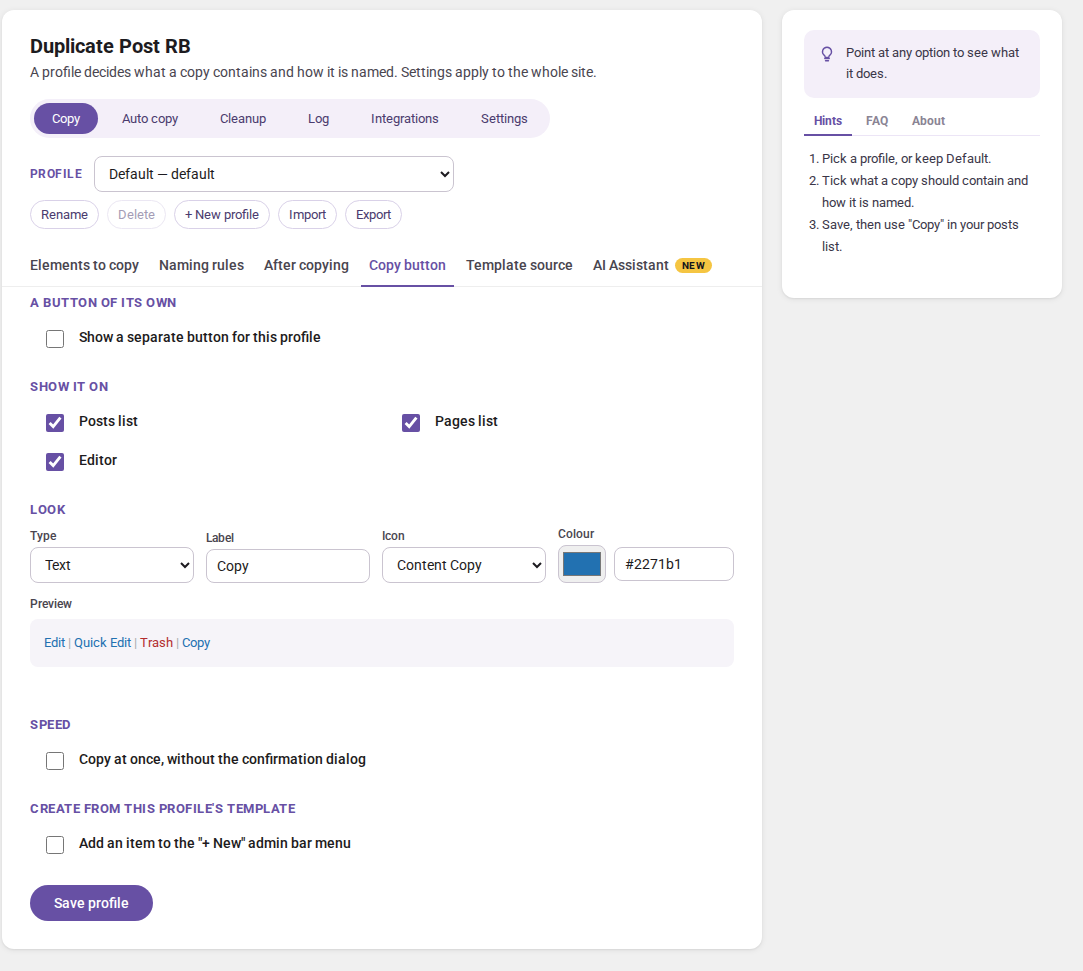
Tick Show a separate button for this profile to give it its own button next to Copy — e.g. Clone landing: text, an icon or both, a label and a colour, with a live preview. Choose where it appears: in the posts list, the pages list and/or the editor.
(PRO) Copy at once, without the confirmation dialog. Add an item to the “+ New” admin bar menu — the profile appears in the admin bar’s + New menu and creates a new item from its template source.
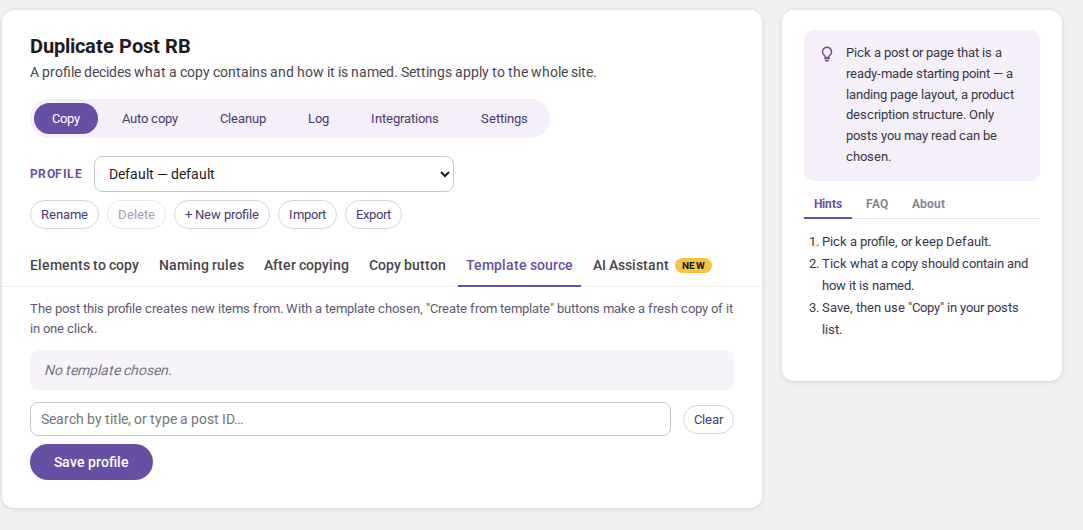
Search by title or type a post ID to pick a post or page as the profile’s template: new items created with the profile ("+ New" menu) start as a copy of it — handy for a standard landing page or product page. Clear removes it.
Clicking Copy in a list, the admin bar or the editor opens the copy dialog.
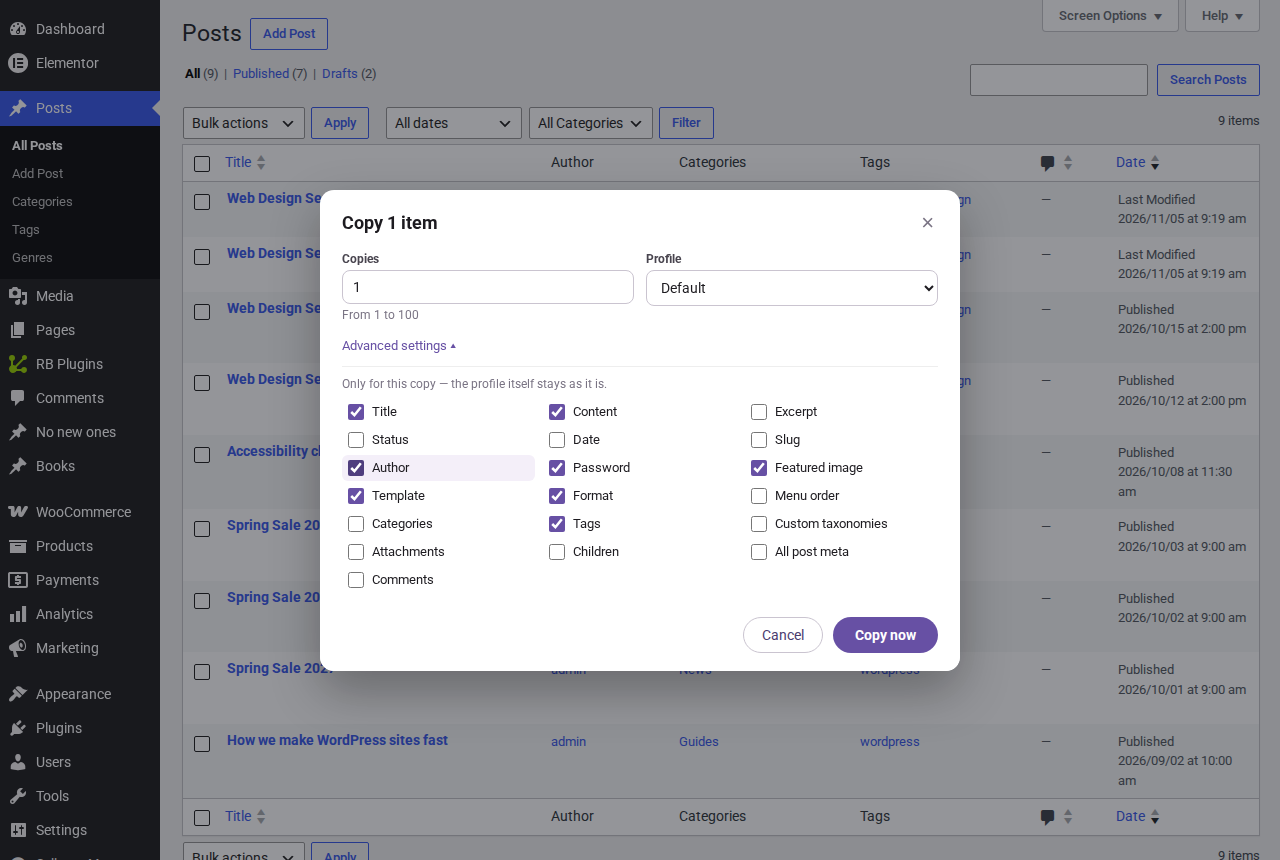
If something could not be copied — a custom field, a child page, an AI step — the dialog says so after copying.
Click Copy now. The same dialog opens for the Copy bulk action, for all selected posts.
Build faster, cleaner, and more reliable WordPress websites using lightweight plugins designed for real-world workflows.
Get started now