

Simplify your WordPress workflow!
Build faster, cleaner, and more reliable WordPress websites using lightweight plugins designed for real-world workflows.
Get started now
Duplicate Post RB adds its actions where WordPress users already work: the posts lists, the editors and the admin bar. Each place can be switched on or off in Settings → Buttons (General settings).
Hover a post: Copy opens the copy dialog, and for a published post Rewrite & Republish starts a rewrite. A profile with its own button adds it next to them.

Select several posts and choose Copy in Bulk actions to copy them all with one dialog.
Copies are marked “Copy of …” next to their title (Settings → Buttons → Link to the original), so you can always see where a copy came from.
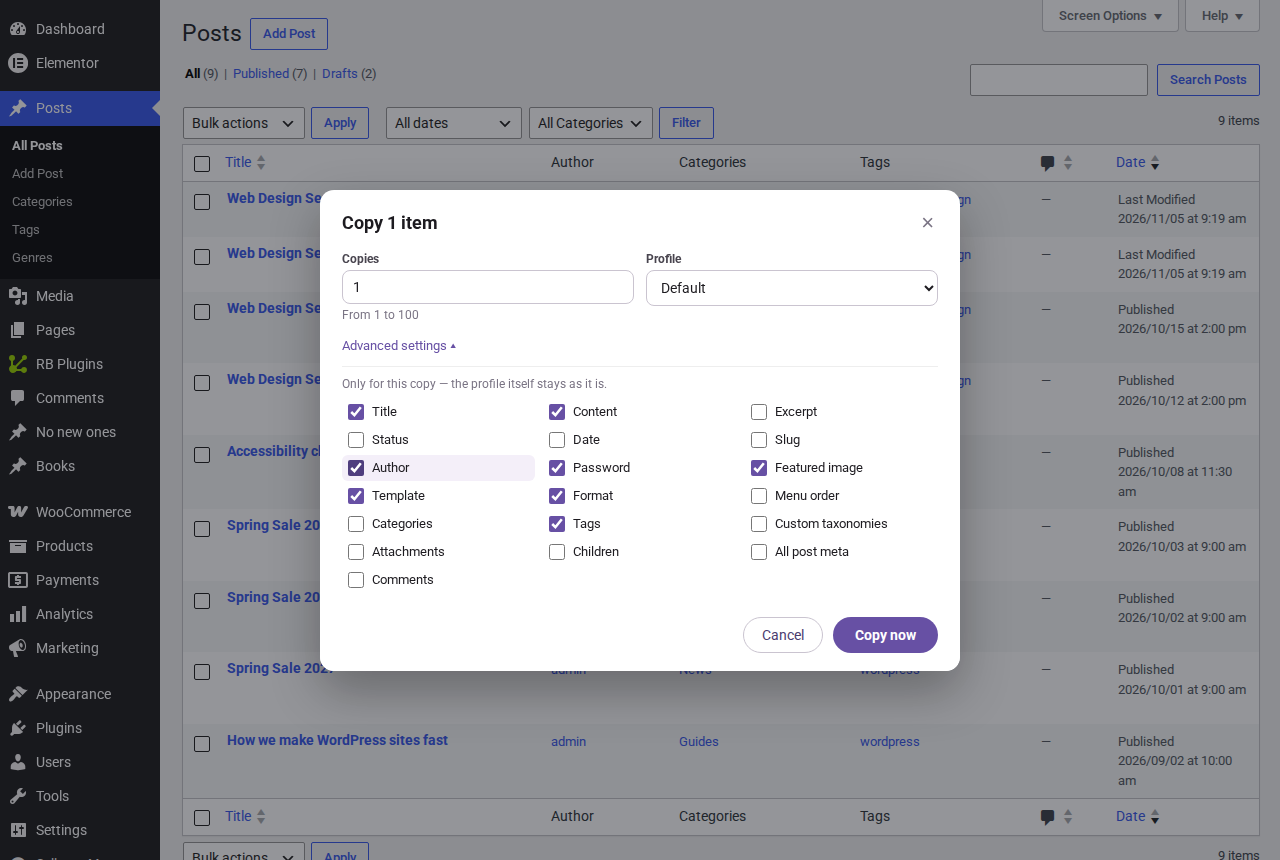
The same dialog opens wherever you click Copy: how many copies, which profile, the questions of the profile’s Assistant, and Advanced settings for this copy only.
Both editors have Copy for the post you are editing; for a published post, Rewrite & Republish is in the admin bar. The edit screen of a copy shows the Copy history box: the original it came from, with a link, and when it was copied.
A rewrite opens in the editor with a note that names the original:
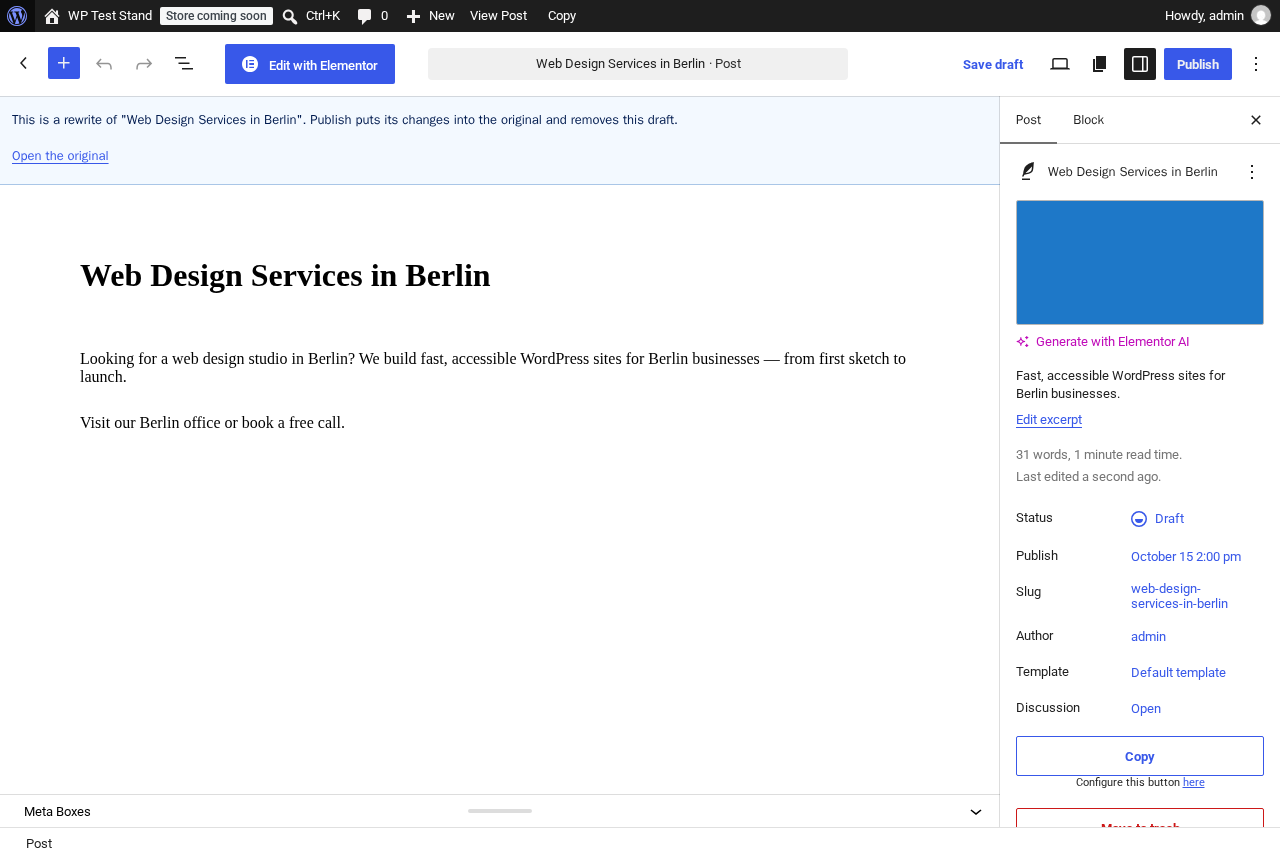
On the edit screen of a post, the admin bar has Copy for it. (PRO) A profile can add an item to the admin bar’s + New menu that creates a new post from the profile’s template source.
The plugin’s own screen, RB Plugins → Duplicate Post (or under Tools, see Settings → Buttons → Menu), has six views: Copy (the profiles), Auto copy, Cleanup, Log, Integrations and Settings. The Help card on its right explains every option you point at.
Build faster, cleaner, and more reliable WordPress websites using lightweight plugins designed for real-world workflows.
Get started now